Basic Marker Lifecycle
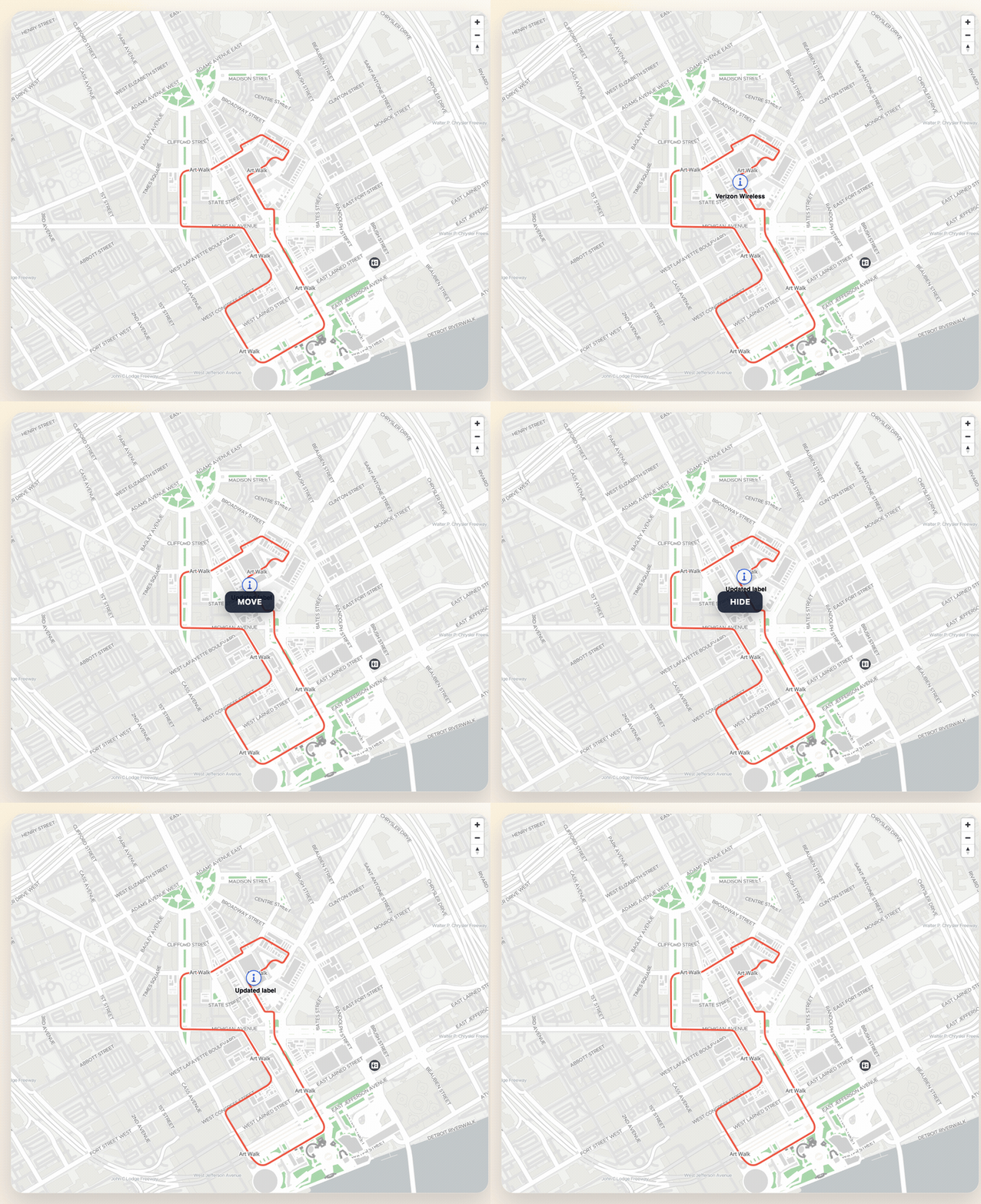
Use this guide when you need the core marker lifecycle on a MapVXMap: create,
update, move, hide, show, and remove.
Setup
Create a map first, then keep its MapVXMap instance around for future marker
operations:
import {
  initializeSDK,
  TextPosition,
  type LatLng,
  type MarkerConfig,
  type MapVXMap,
} from "@mapvx/web-js"

const sdk = initializeSDK("<YOUR_API_KEY>")
const mapContainer = document.getElementById("map") as HTMLElement

const map: MapVXMap = sdk.createMap(mapContainer, {
  center: { lat: 4.666918, lng: -74.053065 },
  zoom: 17,
})
Create a marker
The only required field in MarkerConfig is coordinate. Text and
icon settings are optional.
const markerPosition: LatLng = {
  lat: 4.666918,
  lng: -74.053065,
}

const marker: MarkerConfig = {
  id: "store-entry",
  coordinate: markerPosition,
  text: "Main entrance",
  textPosition: TextPosition.bottom,
  icon: "https://cdn.mapvx.com/examples/pin-blue.svg",
  iconProperties: {
    width: 36,
    height: 36,
  },
  onClick: () => {
    console.log("Marker clicked")
  },
}

const markerId = map.addMarker(marker)
Update marker content
Use updateMarker when you need to change the icon, label, or style of an existing marker without
removing and recreating it. The new payload must include the same id.
const updatedMarker: MarkerConfig = {
  id: markerId,
  coordinate: markerPosition,
  text: "Updated label",
  textPosition: TextPosition.right,
  icon: "https://cdn.mapvx.com/examples/pin-green.svg",
  iconProperties: {
    width: 40,
    height: 40,
  },
}

map.updateMarker(updatedMarker)
Move a marker without rebuilding it
When only the position changes (e.g. tracking a moving vehicle), updateMarkerPosition avoids the
overhead of rebuilding the entire marker DOM:
map.updateMarkerPosition(markerId, {
  lat: 4.6672,
  lng: -74.0528,
})
Hide and show markers
Hiding is useful when markers should disappear temporarily (e.g. during a floor transition) but preserve their state for later. Hidden markers keep their identity and can be shown again at any time:
map.hideMarker(markerId)
map.showMarker(markerId)
Remove one marker or all of them
map.removeMarker(markerId)
map.removeAllMarkers()
When to use other marker examples
- Go to Marker Icons when you want to compare URL-based icons, HTML icons, sizes, and anchors.
- Go to HTML Markers when the whole marker should be custom DOM via
element. - Go to Places, Markers, and Routes when marker visibility depends
on a real
MVXPlaceor an indoor route.